In this tutorial, I will show you a very simple setup where you can write C++ code for win32 platform, compile it and create an executable using GCC on Windows. I will be using windows 10.
Generally, developers install Visual Studio for win32 programming. But Visual Studio is multi gigabyte application and there are many systems that suffer to run it properly as it is very heavy-weight development software, although it very good (best for me), but that’s the price you have to pay. For those machines, we can use GNU GCC compiler. It’s just a compiler, not an IDE like Visual Studio.
First, download GCC. Do a quick search for “gcc windows” and you can download and install it. The easiest way I found to get the GCC installer is from Equation Solution website (download GCC from Equation Solution). There you will find the GCC exe installer and you will need to download and install the latest one. I am on Windows 10 and at the time of writing, version 15.2.0 is the latest, so that’s what I installed on my system.
After Installing make sure you add the gcc path. If you went with the default path during installation, then it should be C:\Users\<Username>\gcc, and you can add the path C:\Users\<Username>\gcc\bin in the windows path.
After that open command line and verify if its installed correctly by running this command:
g++ --version
and the output will be:
g++ (GCC) 15.2.0
Copyright (C) 2025 Free Software Foundation, Inc.
This is free software; see the source for copying conditions.  There is NO
warranty; not even for MERCHANTABILITY or FITNESS FOR A PARTICULAR PURPOSE.
It means GCC is properly installed on your system and path is set. Now we can proceed.
First, I will create a very simple C++ hello world application and try to compile it, create executable and run it. After it runs successfully, we will move to win32 application creation and compilation.
Create a folder for our little project somewhere on your hard disk. Let’s say you named it win32_testing. Go inside this folder and create a new file win32_app.cpp and write this code in it (you can name it win32_app.c also as in this tutorial all code is simple C programs, just remember to replace win32_app.cpp with win32_app.c in command while compiling it).
#include <stdio.h>

int main() {
	printf("Hello Win32 programming!");
	return 0;
}
Now open command line and navigate to this folder location. Run this command to compile it.
g++ win32_app.c -o main.exe
This will compile the program and if there is not any error then it will create main.exe file in the folder. This is an executable file. If you run it you will get the result like this:
C:\Test\win32_testing>main.exe
Hello Win32 programming!
It means our setup is working and it can successfully compile a C or C++ program. Let’s do some Windows programming. We will do the classic beginner Windows programming, the easiest, showing a message box. For that, let’s change the win32_app file’s code as shown below:
#include <windows.h>

int WINAPI WinMain(HINSTANCE hInstance, HINSTANCE hPrevInstance, LPSTR lpCmdLine, int nCmdShow)
{
    MessageBox(NULL, "Hello Win32 programming!", "Our Application", MB_OK);
    return 0;
}
Same way, as you did earlier, if you compile and run the program:
C:\Test\win32_testing>g++ win32_app.c -o main.exe
C:\Test\win32_testing>main.exe
You will see a simple Windows message box like below:
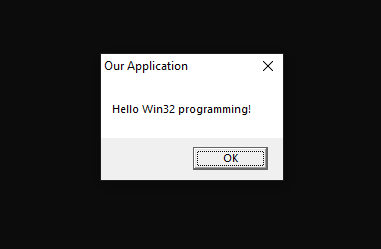
This is a very simple Win32 programming without using Visual Studio. In this tutorial we only used GCC compiler and a simple text editor like notepad or notepad++. Very light-weight setup gives us option to develop on system that struggles to run Visual Studio.
You can use same way to do Windows programming with Visual Studio installed, in that case you will not need to run visual studio, just use the compiler that is provided by visual studio, and edit your files in some light-weight editor. I will create a blog post on that in future and put the link here.
Let me know in case of any questions in the comment section. Happy Coding.
Be First to Comment